Automated Reminders in Teams: Why Most of Them Get Ignored
Most Teams reminders get ignored because they ask for nothing and record nothing. Here is why that happens and the sequence that fixes it.
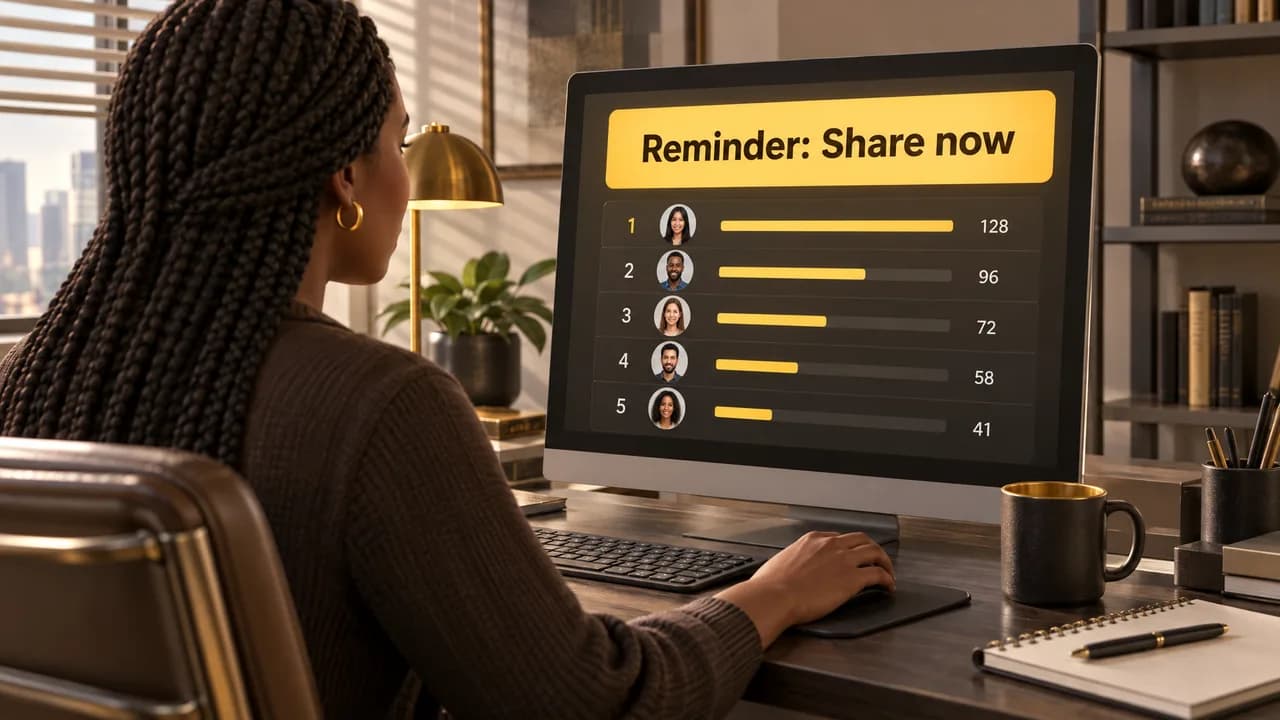
Automated reminders in Teams fail because the nudge is the only artifact the system produces: nothing visible changes when someone acts, and nothing happens when they don't. The fix is not a better message. It is putting a standing and a reward on the other side of the click, so the reminder points at something the reader can win or lose. Get that order right and the reminder stops being noise.
Why Teams Nudges Fail Before Anyone Notices
A reminder is a prompt with no stake attached, and people triage prompts by stake, not by politeness. When twelve channels compete for attention in one afternoon, the message that says "don't forget to share the post" loses to the message that says "your numbers are due at five." That ranking happens in seconds and the sender never sees it.
Microsoft gives you a real notification layer to work with. Microsoft says Teams notification settings let you manage reminders for messages, meetings, and other activity in Settings > Notifications and activity. Useful plumbing, and it is the wrong lever for this problem. Notification settings control whether a signal reaches a person. They do not control whether the person cares.
There is a second driver that surprises people who inherited a reminder schedule from somewhere else. Most reminder programs are built to satisfy the sender's anxiety rather than the reader's decision. The sender wants proof the message went out. The reader wants to know what changes if they act. Those two goals produce different messages, and only one of them survives contact with a busy workday.
The third cause is scale. One reminder to a five-person team reads as a personal request. The same reminder templated to fifty people reads as bulk mail, and everyone can tell which one they received. Volume degrades the message even when the copy is identical.
The Habits That Turn a Nudge Into Noise
Sending on a fixed clock rather than around an event is the habit that breaks the most programs. A 9:00 a.m. ping is correct when a campaign goes live at 9:15 and wrong on a quiet Tuesday. Because the schedule never varies, the reader learns that the ping carries no information, and they start filtering it the way they filter a shipping notification.
Treating the reminder as the whole program is the next one. If the sequence is post, ping, done, there is nothing to check afterward and no reason to answer the second message. Programs that work have a middle and an end: a send, a record, an announcement. Cut either end off and you are back to a nudge with nowhere to go.
Using the meeting reminder slot as a general-purpose ping is a specific trap. Teams calendar meetings and webinars do not support configuring multiple custom reminder times directly in Teams, per Microsoft Learn Answers. Teams engineers who want a 2-day, 1-day, and 1-hour cascade are borrowing a habit from Outlook, where those offsets exist, and the expectation does not transfer. Multiple reminder times (2 days, 1 day, 1 hour) are only described in general Outlook reminder settings, not in Teams (Microsoft Learn Answers).
Automating the wrong behavior is the quiet one. A reminder that fires reliably trains people to respond reliably, so if you schedule a ping for a task nobody should be doing manually, you have industrialised waste. Check what the reminder is asking for before you check how often it fires.
Finally, there is the icon problem. An automated reminders icon showing an unread badge is a state, not a message, and it does not distinguish between a note from a manager and a scheduled broadcast. Users who cannot tell those apart start clearing badges rather than reading them, which is a habit you cannot undo by rewriting copy.
Signals That Your Reminder Schedule Has Gone Stale
You do not need analytics access to spot a dying program. Watch these instead:
- The first response times drift from minutes to hours across consecutive sends.
- The same three or four people account for nearly every reply or reaction.
- People start acknowledging with a thumbs-up immediately and acting hours later.
- Someone asks in a thread whether the reminder is still running, which means they have stopped reading it as current.
- Managers re-send the same instruction manually after the automated version goes out.
- Participation clusters on Monday and collapses by Thursday, in a pattern the schedule does not explain.
No single signal proves the program is finished. Two of them appearing in the same week is the point at which rewriting the copy stops helping, because the problem is structural rather than editorial. Weight what you can observe over what people tell you when asked; a team will usually defend the reminder out of politeness while privately filtering it.
Rebuilding a Reminder Loop That Holds Up
The sequence matters, because a reminder built before its tracking and rewards has nothing to point at. Build it in this order.
- Define the single action you want repeated each week, small enough to finish in under two minutes.
- Put a number on that action and make the number visible to everyone doing it.
- Attach a reward to the number, sized so that winning is plausible for most of the team and meaningful to all of it.
- Set the send window relative to the activity, not to the clock: fire the nudge when the content goes live and again before the weekly cutoff.
- Vary the surface between sends so the message does not arrive as the same grey block every time.
- Publish the standings on a fixed day, with the winner named whether or not the numbers were good.
- Review the schedule monthly and delete any send that no one has acted on in three consecutive cycles.
Step two is where most rebuilds stall, because a visible number requires a place to display it. That is why the tooling question and the reminder question are the same question in practice. Programs with a live standings view can survive a mediocre nudge; programs without one cannot survive a great one.
The reward layer deserves a moment. A prize that only the top performer can win flatters the same person every month and quietly demotivates everyone else, which is why recurring milestones beat one-off luck. If you want a sense of what a running program looks like in practice, the program examples show the shape of a live contest rather than a finished retrospective.
Choosing Between Native Scheduling and a Dedicated Platform
You face a real fork here, and the wrong choice is expensive in both directions. Native Teams notification settings handle calendar prompts and meeting alerts well, and they cost nothing extra. They do not give you standings, rewards, or a record of who acted. A dedicated amplification platform does those things and asks you to run the program inside it.
The variable that settles the decision is whether you are asking for attendance or for participation. A calendar reminder answers "did everyone know about the meeting." An amplification platform answers "who shared, how many times, and who is winning." Those are different questions, and one tool will not answer both.
Watch for the team-size trap on the other side too. Teams that expect to grow past a couple of dozen sharers should check whether pricing scales on seats or on features before they commit, because per-feature gating punishes exactly the growth these programs are meant to produce.
| Tool type | Best for | What it won't do |
|---|---|---|
| Teams notification settings | Meeting alerts and message reminders for users who already want them | Track participation or produce standings |
| Outlook reminder offsets | Calendar cascades outside Teams | Carry into a Teams-native workflow |
| Dedicated amplification platform | Scheduled sends tied to leaderboards, points, and prizes | Replace your calendar or meeting alerts |
If your honest answer is that you need a prompt and nothing after it, native settings are sufficient and you should stop there. If you need the prompt to produce a record and a winner, native settings will not get you there no matter how well you write the copy.
How We Build the Consequence Into the Nudge
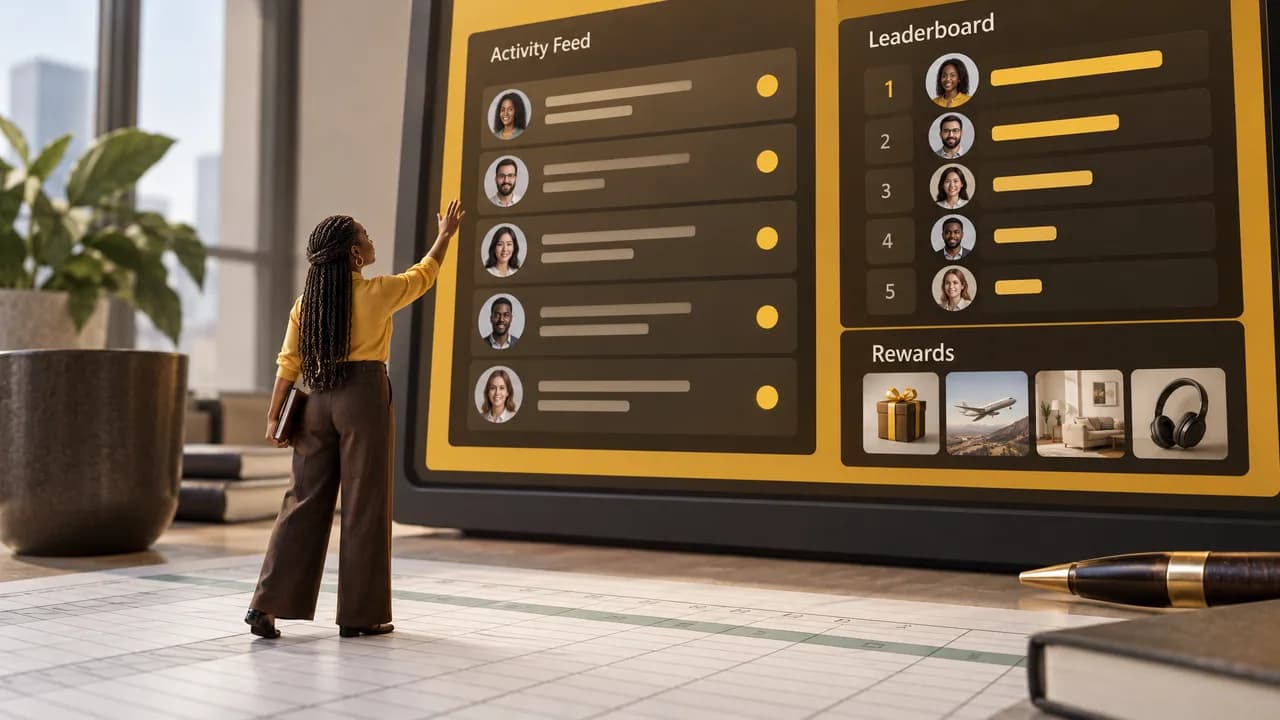
We built Buzz 52 around the one thing a nudge cannot generate on its own: a reason to answer it. We gamify employee engagement with leaderboards and rewards, so a share lands on a visible standing instead of vanishing into a channel. Teams can see who is ahead, by how much, and what is at stake this week.
The mechanics are deliberately plain. We schedule automated reminders on custom send schedules and track standings on live leaderboards with point tracking, and we run prize contests with winner notifications so the end of a cycle produces an announcement rather than a silent reset. Custom branding keeps the program looking like your company rather than a vendor overlay.
Setup takes under five minutes on the free plan, which covers one to five employees forever with no credit card. Standard covers six to forty-nine employees with every feature included, and Enterprise handles fifty or more. Pricing is based on team size, not feature limitations, so nothing you need is held back at a lower tier.
Two honest limits. Our platform is limited to social media amplification for employee engagement, which means it will not replace your calendar, your project tracker, or your meeting alerts, and we would not want it to. And if your team already responds to a plain calendar prompt without any tracking behind it, you do not need us yet. When you are ready, start on our free plan or get in touch.
Frequently Asked Questions
How to give a reminder on Teams?
You have two practical routes. The first is a calendar event with a reminder offset, which works well for anything scheduled. The second is notification settings, where Microsoft says meeting start notifications in Teams can be turned on or off from Settings > Notifications and activity > Meetings.[1] Neither route lets you design a multi-stage campaign with standings and rewards, so if the reminder is meant to drive repeated participation, plan for a separate tool alongside Teams.
Is there a reminder app for Microsoft Teams?
There are apps and connectors that push scheduled messages into a Teams channel, and there are dedicated engagement platforms that add tracking and rewards on top. The distinction that matters is whether the app only delivers the message or also records what happened after it. A delivery-only app solves the same problem notification settings already solve. If you want the reminder to produce a leaderboard, a winner, and a reason to answer, look for a platform built around participation rather than a scheduler built around delivery.
Why isn't Microsoft Teams sending meeting reminders?
Check the notification toggle first, since a disabled setting is the most common cause. Microsoft's Teams notification settings page says the setting for meeting chat notifications for meetings I've accepted is on by default, so if reminders stopped without anyone changing settings, look at the device and platform next (Microsoft Support). One structural cause worth knowing: Teams does not support configuring multiple custom reminder times directly in Teams for calendar meetings, so a reminder that depends on a 2-day, 1-day, and 1-hour cascade will only ever fire the way Teams allows.
Is there a remind me feature in Teams?
Not in the sense most people mean. Teams offers notification management for messages, meetings, and other activity, which covers whether you get told about something, but it does not provide a personal "remind me about this message later" command the way some task tools do. Microsoft notes that meetings and webinars do not support multiple custom reminder times directly in Teams, so the calendar side is even narrower.[2] For repetitive team activity, the workable answer is a scheduled send and a visible standing, not a personal snooze button.
Sources
- Microsoft Support
Windows Mac iOS Android Microsoft Teams lets you control how and when you’re notified, where activity appears, and which conversations you see. Notification settings determine when Teams alerts you about messages, meetings, and other activity.
- Microsoft Learn Answers
Teams calendar meetings and webinars do not support configuring multiple custom reminder times (for example, 2 days, 1 day, and 1 hour before) directly in Teams.
Sources checked on October 13, 2026.
Get new articles by email
New articles from Buzz 52, sent to your inbox.
By subscribing you agree to receive emails from Buzz 52 about new articles. You can unsubscribe at any time.