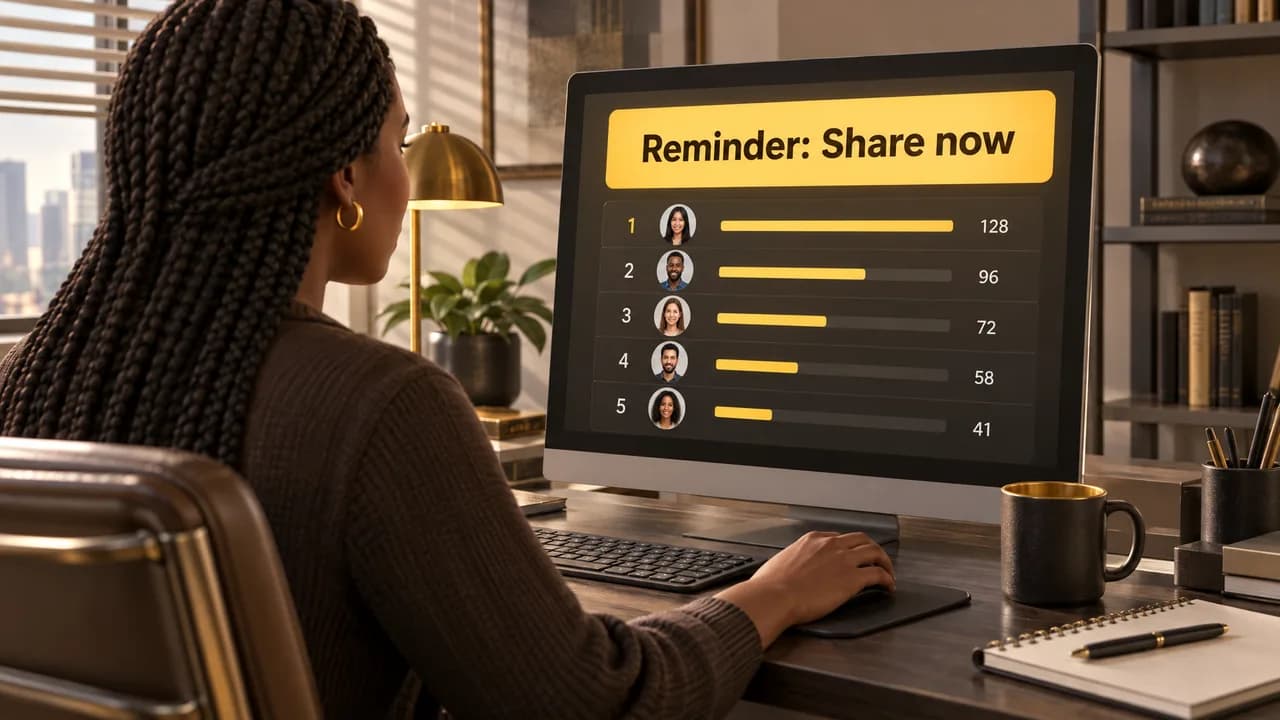
Automated Reminders in Excel: The Build That Survives Past Monday
Excel is the best place to keep reminder logic and the worst place to deliver it. Here is the working build, the failure modes, and where a team has to stop.
Excel is the right place to keep a reminder's logic and the wrong place to deliver the reminder. The pattern that works is two halves: a date column and a status flag inside the file, and one delivery tool outside it that reads the file on a schedule. Get that split right and the thing runs for months. Get it wrong and you have built a spreadsheet nobody opens, which is the same as building nothing.
Automated Reminders in Excel: The Build That Survives Past Monday
The Working Pattern, With the Fields Named
Here is the skeleton. Four columns carry the whole thing, and only one of them is a date.
A1 Owner B1 DueDate C1 Status D1 LastSent
A2 Priya B2 2026-10-21 C2 Open D2
A3 Marcus B3 2026-10-23 C3 Open D3 2026-10-14
Owner is a name, not an email address. Keep the address in a second sheet so the flow looks it up rather than asking you to retype it when someone leaves. DueDate must be a real Excel date value, not text that looks like a date, because every filter and every date function downstream depends on it. Status is a plain word from a short list: Open, Sent, Done. LastSent is written by the delivery tool, not by a person, and it is what stops the same reminder firing twice.
Fill it once:
A2 Priya B2 2026-10-21 C2 Open D2
That is the entire data model. Everything else in this article is about what reads those four columns and when.
Support for this shape is not anecdotal. If you enjoy building it, fine. Just know what you are signing up for: the maintenance is the product.
What "Automated" Has to Mean Before Excel Qualifies
Two things have to be true before the word applies. It has to run on a schedule you did not personally trigger, and it has to run when nobody is looking at the file.
That second condition is where most builds die. A spreadsheet formula does not sit in the background waiting for a deadline. It recalculates when the workbook opens or when someone edits a cell it depends on. So a reminder built on =IF(TODAY()>=B2,"Send","") does not send anything. It sits there quietly displaying the word Send, and it displays that word the next time a human opens the file. If the file goes untouched for three weeks, so does your reminder schedule.
A 2023 Microsoft community thread asked exactly this, whether Excel could be made to send a reminder email, and the answer was no. Not on its own. The workaround everyone lands on is the same one: split the trigger away from the sheet.
The same split shows up elsewhere. A 2024 paper in Jurnal Teknologi Terapan G-Tech documents an automated billing reminder built on scheduled messages rather than spreadsheet recalculation, which is the honest architecture for any recurring reminder. Excel holds the logic. Something else holds the clock.
The distinction matters most when the reminder lands on a colleague rather than on you. Telling a coworker their post is due is a request. Telling a coworker to log into a spreadsheet to find out their post is due is a chore with a due date attached, and it gets treated accordingly. The difference is not the message. It is whether the recipient has to do anything before the message means something.
Where Spreadsheet Reminders Break, and the Fix for Each Break
Duplicate sends. The first reminder goes out, nobody updates the row, and the next run sends it again. Two reminders later your team has learned to ignore the whole channel. Fix it with the LastSent column and a flow condition that skips any row already stamped inside the last few days. Do not skip the condition thinking you will remember to update rows by hand. You will not.
Dates stored as text. Someone types "21 Oct" instead of picking the date, and every downstream comparison silently stops matching. The reminder never fires and nothing throws an error, because a text value and a date value never compare equal. Set the column format to Date before you type anything into it, and use a validation rule that rejects free-typed entries.
The logic owner leaves. The person who built the flow keeps the credentials, changes roles, and six weeks later nobody can tell why reminders stopped. Write the sheet name, the flow name, and the owner's email into a cell at the top of the sheet. It sounds trivial. It is the single most common reason these things quietly die.
Silent failure. A flow that stops running logs nothing your team would notice. The reminders simply do not arrive. Build a second schedule that emails you whenever the primary run has not completed in its expected window, so you learn about the outage from a system rather than from a missed deadline.
Nobody is graded on the outcome. This one is cultural, not technical, which is why it outlasts the others. If the reminder is the whole intervention, the reminder is the whole result, and results do not appear just because a message did.
The last failure points at the real limit. If you are automating a recurring task people keep skipping, ask which question you are actually answering. If you can see the whole chain as a lead generation system that converts answers into pipeline, the reminder is a small part of a bigger machine. If you cannot, the reminder is a nudge with no floor under it.
A Build Order You Can Actually Finish in an Afternoon
- Set up the four columns exactly as shown, format
DueDateas a real Date, and add data validation soStatusonly accepts Open, Sent or Done. - Convert the range into an Excel Table with a keyboard shortcut. Tables expand automatically when rows are added, which means your flow's range does not break the first time someone adds a task.
- Test the query from outside first. In Power Automate, add "List rows present in a table", point it at the file, and check that the run history shows four columns back. This is the step people skip, and it is the step that saves the afternoon.
- Add the condition on
Statusand onLastSentbefore you configure any email. Get the filter right while the run history is short enough to read. - Send one real reminder to yourself with the row's own values in the body. Confirm the date renders the way you expect, because date formatting shifts when it crosses from the sheet into the message.
- Add "Update a row" to stamp
LastSentimmediately after the send, and confirm with a second manual run that the same row is now skipped. - Wait a full cycle before you tell anyone the system exists. One week of working reminders buys more trust than any announcement.
The Big Decision Nobody Makes Deliberately
Reminder-alone and reminder-plus-tracking are different products, and picking the wrong one is why these projects stall.
Reminder-alone answers "did this fire". The Excel-plus-flow build handles that completely, and it is the correct answer for internal operations: invoice follow-ups, renewal dates, equipment checks, subscription reviews. Nobody needs to see a score. You need the date to arrive and the task to close.
Reminder-plus-tracking answers a different question: of the people we reminded, who acted, and did repeated action change anything. That needs a visible record of participation, a way to compare people fairly, and a reason for someone to care beyond avoiding a nag. You can bolt that onto a spreadsheet with a count column and conditional formatting. What you cannot build in a file is the part where participation gets recognized, and that is the part that keeps a recurring program alive past the first month.
That matters most when the thing you are reminding people about is not a task but a behavior. Social posting for a brand is a behavior. It has no natural deadline, so a due date reminder group is a deadline you invented, and invented deadlines evaporate the moment the person sending them gets busy.
Why We Stopped Making People Live in a Spreadsheet
We built Buzz 52 because we kept watching the same pattern: a well-made spreadsheet, a working flow, six weeks of reliable reminders, and then a slow fade. The reminders kept arriving. The behavior did not persist.
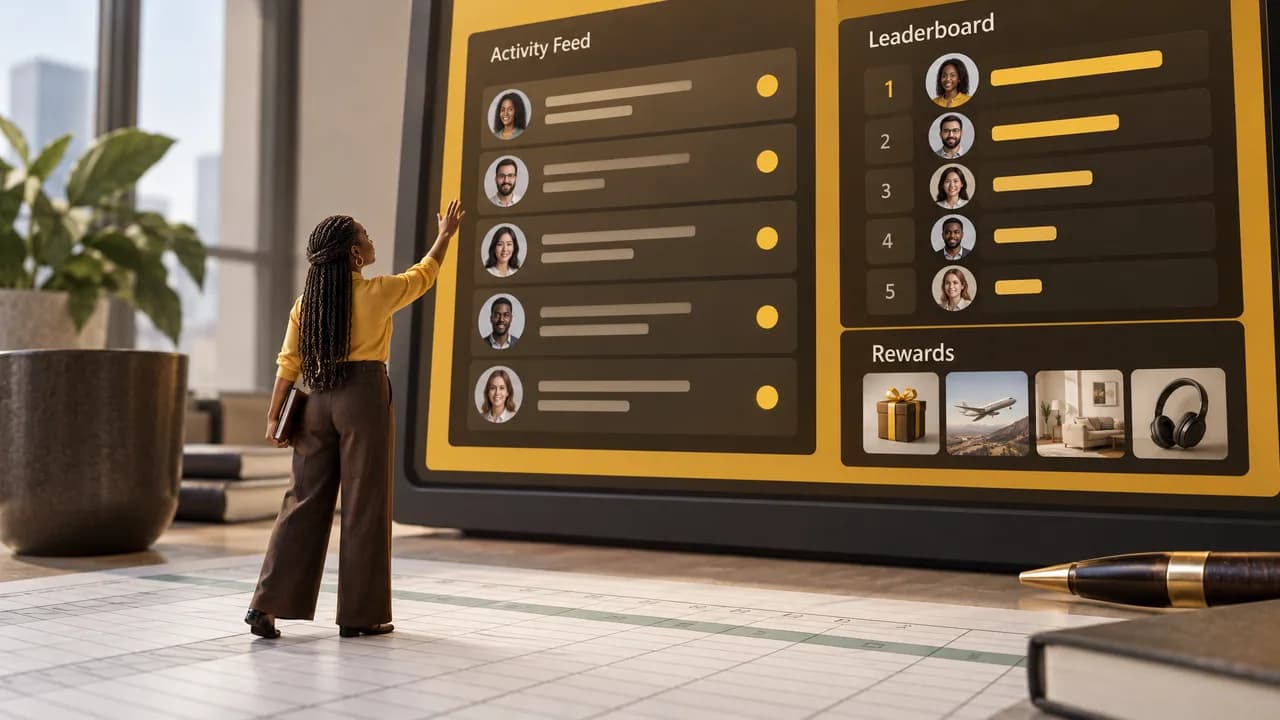
Our answer is to run the reminder loop as a gamified program instead of a ping schedule. Automated reminders go out to the team, a live leaderboard and point tracking show who has posted and who has not, and rewards and prize contests give people something to play for. Prize contests include winner notifications, and every send is scheduled on a custom cadence rather than tied to a spreadsheet's open state. We run it as a flat monthly program: our Free plan covers one to five employees with no credit card, Standard covers six to forty-nine with everything included, and Enterprise is priced per employee per month. You can see the current numbers on our pricing page.
This is not the right tool for everyone. We are built for social media amplification only. Our setup takes a few minutes, but setup speed is not why you would choose us. You would choose us because the reminder alone stopped working.
If the behavior you are trying to drive is employee social sharing and the pings have stopped landing, talk to us and we will show you how the loop runs.
Related reading
Frequently Asked Questions
Can I add a reminder in Excel?
Yes, but what you are adding is a visual alert, not an automated send. Conditional formatting can highlight a row the moment its due date passes, and it will update the next time the file opens or recalculates. That is a real reminder if you are the only person who needs it and you open the file daily. If the reminder has to reach someone else on a schedule, Excel is holding the data and something outside it is doing the sending.
How to autofill dates in Excel automatically?
Two approaches, and they solve different problems. Drag the fill handle with two consecutive dates selected and Excel continues the sequence, which works for a fixed calendar of dates you already know. For dates that depend on other cells, use =WORKDAY() to skip weekends or =EDATE() to add whole months, so the date advances on its own logic instead of your arithmetic. Whatever you choose, format the column as a real Date first, because text that looks like a date breaks every comparison downstream.
How do I set up a reminder for a due date in Excel?
Build the four-column table, with the due date as a real date value and a status column that reads Open, Sent or Done. Then connect a delivery tool to that table and set the trigger to the date column rather than to a formula result. Add a condition that skips any row already stamped as sent in the last few days, and have the tool write that stamp back into the sheet immediately after each send. Test it against your own address before you point it at the whole team.
Get new articles by email
New articles from Buzz 52, sent to your inbox.
By subscribing you agree to receive emails from Buzz 52 about new articles. You can unsubscribe at any time.